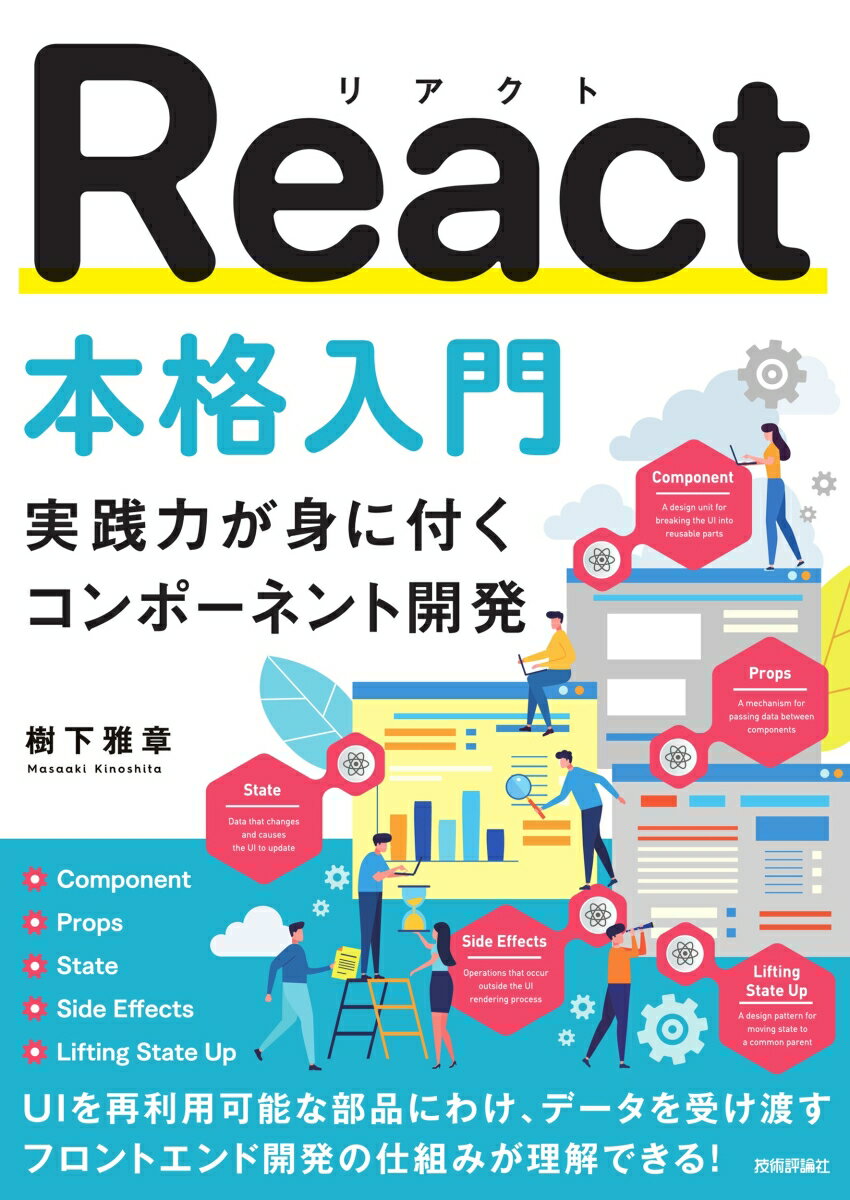
React
Reactは、ユーザーインターフェースを構築するためのJavaScriptライブラリです。
Meta社(旧Facebook社)によって開発され、Webアプリケーションを構築するための最も人気のあるJavascriptライブラリの1つとなっています。
Reactは宣言型のアプローチに重点を置いており、コードの理解やデバッグを容易にします。Reactを使用すると、再利用可能なUIコンポーネントを構築し、アプリケーションの状態を管理し、効率的でパフォーマンスの高い方法でブラウザにコンポーネントをレンダリングすることができます。
また、Reactは仮想DOMを使用してUIを効率的に更新します。
React はまず仮想 DOM に変更を加え、その変更を実際のDOMと同期することで、WEBページの表示切り替えの速度を早めます。
サーバーサイドレンダリングもサポートしており、アプリケーションのパフォーマンスを向上させると同時に、検索エンジンがコンテンツをインデックスしやすくすることも可能です。
イベント
該当するコンテンツが見つかりませんでした
マガジン




技術ブログ
はじめに こんにちは、Insight Edgeの小林まさみつです。 ※ 本記事はPoC案件での技術検証の内容であり、商用環境での実用性は今後の検証課題です Claude Codeのようなコーディングエージェントに実装を任せる場面は珍しくなくなりました。一方で、実装を任せたあとの「意図どおりに動いているかを確認する」「レビューする」「マージして後片付けをする」といった作業は、人の手に残りがちです。 今回は、あるPoC案件の開発で、タスクの起票からレビュー、マージ依頼までをAIエージェントに任せる仕組みを作って運用しました。本記事では、背景、設計の考え方であるハーネスエンジニアリング、具体的な仕組み、導入結果と今後の課題を紹介します。 なお、本記事は実務で行った内容をもとにしていますが、案件を特定できないよう、案件の内容はぼかして書いています。 TL;DR タスクの起票、設計、実装、レビュー、マージ依頼、後片付けをAIエージェントに任せ、人は「planとDRのレビュー」と「マージ」の判断だけを担当した 仕組みで強制する制約( deny 、フック、CI)と、プロンプト側で規定する振る舞い(レビューの3分類など)を分けて設計した PoCでの成果であり、商用の開発で通用するかは今後の検証課題 目次 背景 ハーネスエンジニアリングを活用した開発 具体的な仕組み 導入結果 今後の課題 まとめ 参考文献 背景 対象は、ドキュメントを分析し、意思決定を支援するレポートを作るPoCです。バックエンドはFastAPI、フロントエンドはReact、分析はクラウド上のLLMを使ったマルチエージェントで行っています。 このPoCでは、次の状況が重なっていました。 他案件のリリースと時期が重なり、人手が足りない 開発者が1人のため、コードレビューをする人がいない 開発タスクが60件を超え、どれも「worktreeを切る → 実装 → PR → レビュー → マージ → 後片付け」という同じ作業の繰り返しになる 一方で、PoCなので要件が限られており、試したい手法をすぐ検証できる立場でもありました。そこで、定型作業をまとめてAIに渡し、人は「何を作るか」の判断に集中する形を目指しました。 実際にどの程度の範囲を回したかは、タスクの内訳で伝わりやすいと思います。認証認可、セキュリティ対策、性能とコストの改善、テスト戦略とE2Eテスト、インフラのコード化とCI/CD、アクセシビリティの改善といった、機能要件から非機能要件、DevOpsまで幅広い領域が含まれます。これらすべてのタスクを、この仕組みで進めました。 ハーネスエンジニアリングを活用した開発 この仕組みを設計するうえで参考にしたのが、Birgitta Böckelerさんの記事 Harness engineering for coding agent users (martinfowler.com、2026年4月)です。 Agent = Model + Harness 記事では、エージェントを「Agent = Model + Harness」と捉えます。ハーネスとは、モデル以外のすべて、つまりエージェントを取り巻く仕組みのことです。エージェント製品に最初から組み込まれた部分(inner harness)と、利用者が自分のユースケース向けに作る部分(outer harness)があり、本記事で扱うのは後者です。 outer harnessは、2種類の制御で構成されます。 ガイド :エージェントが動く前に方向づける(feedforward) センサー :動いた結果を観測し、自己修正させる(feedback) さらに、それぞれを次の2種類に分けて考えられます。 computational :機械的に決まる。テスト、リンター、権限設定など inferential :LLMの判断に頼る。レビューや方針の記述など 人の役割は、同じ問題が繰り返されたときに、ガイドとセンサーを改善してエージェントを操ることです。 この関係を、本記事の内容に当てはめて図にすると次のようになります。 ハーネス概要 この図は、Böckelerさんの記事にある図を、本プロジェクトの部品で描き直したものです。原典の図は 記事 で確認できます。 人がやること、AIがやること ハーネスで周囲を固めたうえで、人の仕事は「判断」に絞りました。 担当 やること 人 起票の指示、着手の指示、planファイルとDecision Recordのレビュー(重要なタスクはテストケースも確認)、マージ、必要に応じたデプロイ作業 AI 要望の分解と調査、Issueの起票、カンバンの移動、設計、実装、テスト、PR作成、デモ動画の撮影と添付、レビューと指摘対応、マージ依頼、worktreeなどの後片付け Decision Record(DR)は、意思決定の理由と採用しなかった代替案を残すためのMarkdownです。タスクごとにAIが書き、人が読んで方針を確認します。 このプロジェクトの部品を並べる 本プロジェクトの部品を、ガイドとセンサー、computationalとinferentialの2軸で整理すると次のようになります。各部品の詳細は、次章で紹介します。 computational(機械的) inferential(LLMの判断) ガイド (事前) settings.json の deny でPRのマージを禁止、レビュー系エージェントに書き込みツールを与えない、worktreeによる作業の分離 CLAUDE.md の設計原則とコメント規約、DRのテンプレート、Issueの「やらないこと」 センサー (事後) 編集後のformatフック、コミット時のシークレット検査、CI(lint、単体テスト、E2E、ビジュアルとa11yの検査、ライセンス検査)、PRへのカバレッジコメント、ミューテーションテスト レビュー指摘の3分類、デモ動画の比較 この表を作ると、何が「強制」で何が「約束」なのかが見えます。実際には、仕組みで強制できているのは、 deny 、ツール権限、シークレット検査、CIだけです。ループの3ラウンド上限や、指摘の3分類、Slack通知の条件は、プロンプトに書いた約束にすぎません。この線引きをどう考えるかは、 今後の課題 で触れます。 具体的な仕組み 構成 構成は、Claude Codeのスキル2つ( /create-task 、 /run-task )と、サブエージェント3つ(planエージェント、devエージェント、reviewエージェント)です。 エージェントのワークフロー ポイントは、エージェント同士が直接やり取りしないことです。司令塔(Orchestrator、 /run-task )が SendMessage で仲介するため、各エージェントは自分の役割だけを見ればよくなります。また、Claude Codeのサブエージェント機能を利用することで、コンテキストを分離しつつ、必要な情報を共有できます。 1タスクの流れ 全体の流れは次のとおりです。人が関わるのは、planとDRのレビューと、最後のマージだけです。 起票( /create-task ) :要望を分解し、コードベースを並列に調査して既存Issueとの重複を判定します。続いて、選択式の質問で要件を固め、優先度とストーリーポイントを見積もります。最終確認を取ったうえで、固定の節構成(背景・目的、要件、やること、やらないこと、依存関係)と固定のラベル(優先度、ストーリーポイント、変更対象項目など)でIssueを起票し、カンバンに登録します。「やらないこと」を明記しておくと、後のレビューで範囲の逸脱を検出できます。 たとえば、次のように要望を一言伝えるだけで起票されます。以下は、実際に起票されたIssueの例です(一部をマスクしています)。 /create-task 画面サイズが大きいと余白が目立つ。見づらいので幅をディスプレイサイズに応じて調整したい 起票されたIssue 設計(planエージェント) :Issueを確認し、作業用のworktreeとブランチを作ります。カンバンを「進行中」に移し、planファイルとDRを書きます。planが完了するまで実装は始めません。人が確認するポイントはここです。正しい設計が行われているかをレビューし、必要に応じて修正指示を出します。問題が無くなれば、実装フェーズに進みます。 planファイルには、背景と要件の要約、設計方針の結論、ファイル単位の実装ステップ、テスト方針、そして「設計上の懸念点・判断が分かれる点」を書かせます。最後の項目は、人がレビューするときの着眼点になります。DRには、背景、決定事項とその理由、検討した代替案と採用しなかった理由を残します。後から「なぜこうなっているのか」をたどるための記録です。 実装(devエージェント) :planに沿って実装します。テストは必須で、LLM呼び出しのみ時間とコストの兼ね合いからモックにします。formatとテストを通してからPRを作り、PRの先頭行にIssueを閉じる記法を書いてカンバンと連動させます。さらに、人のレビューをしやすくするために、変更前後の画面を並べたデモ動画を録画してPRに添付します。後段のレビュー指摘を受け取った際、内容に同意できない場合は、反論してよいことにしています。 一方で、force push、マージ、Issueの「やらないこと」への着手は禁止です。 PRに添付されたデモ動画。左が変更前、右が変更後 レビュー(reviewエージェント) :次の8観点をレビューします。 シークレットの混入 「やらないこと」への逸脱 要件の充足 アーキテクチャ方針が適切か テストの有無と妥当性 Decision Recordが適切に記録されているか 実装品質 セキュリティ これに加えて、デモ動画の挙動がIssueの要件と一致しているかも確認します。ループは最大3ラウンドで、反論が2往復続いた場合は打ち切って人に判断を仰ぎます。これは過剰な議論や実装を防ぐための仕組みです。試しにラウンド数に制限をかけずに運用してみたところ、4ラウンド以降は些細な指摘が延々と続き、効率が大幅に低下しました。そのため、3ラウンドを上限としました。 reviewerエージェントが投稿したレビューコメントの例 マージと後片付け :レビューが承認されると、SlackのIncoming Webhookにより通知が届きます。人が内容を確認してマージすると、司令塔がマージを確認し、worktree、ローカルブランチ、リモートブランチを削除して main を更新します。マージだけは人が握り、それ以外は自動で片付く設計です。また、Slackのメッセージには追加で対応が必要な事柄(例えば、インフラリソースの変更など)も含めるようにし、何をすれば良いかが一目でわかるように工夫しています。 実装例:computationalなガイドとセンサー 強制力のある部分は、設定ファイルに数行書くだけで実現できます。たとえば、PRのマージをエージェントに禁止し、ファイルを編集するたびに自動でフォーマットをかける設定は、 .claude/settings.json に次のように書きます。 { " permissions ": { " deny ": [ " Bash(gh pr merge:*) " ] } , " hooks ": { " PostToolUse ": [ { " matcher ": " Edit|Write|MultiEdit ", " hooks ": [{ " type ": " command ", " command ": " mise run format " }] } ] } } deny はプロンプトでの「マージしないでください」と違い、エージェントがこのコマンドを実行できなくなります。実は最初の版では、reviewエージェントが承認後に自動でマージしていました。マージだけは人が握る、という方針をルールとして書くのではなく、仕組みで担保した例です。 --- name : review description : devエージェントが作成したPRをレビューし、承認時は司令塔へ報告する。マージは行わない。 tools : Bash, Read, Glob, Grep, SendMessage model : opus --- コミット時のシークレット検査(pre-commit)は、あえて検査を1つに絞っています。整形や単体テストは数十秒かかり、コミットのたびに走らせるには重いためです。フックが守るのは、一度コミットすると履歴から消すのが極めて高コストな「シークレット」だけにし、残りはCIに任せています。CIと同じコマンド、同じgitleaksのバージョンを使うため、フックが通ればCIでも通ります。なお、前述のPostToolUseフックにより、ファイルを編集するたびに自動でフォーマットがかかるようになっているため、基本的にはCIでLinter/Formatterによる失敗は起こりません。 #!/bin/sh set -e exec mise run scan:secrets:staged センサーの事例①:指摘を握りつぶさせない3分類 最初のレビューの運用では、「軽微な指摘ならAPPROVEしてコメントを残す」という余地がありました。その結果、マージ済みの3タスクで、10件以上の指摘が誰にも対応されないまま残りました。「任意対応」は、誰も対応しないことの丁寧な言い換えでした。 そこで、レビューの指摘を必ず次の3つのどれかに分類するようにしました。「任意」という分類は作りません。 分類 判断 扱い 狙い 要修正 このPRの目的や品質に必要 このPRで直す 品質を守り、要件を満たす 別タスク化 重要ではないが、いずれ直すべき 優先度を下げてIssueを起票する レビュー負荷の軽減と、過剰な実装の防止 取り下げ 些細で、直しても価値がほとんどない 理由を書いて撤回する 些細な対応の繰り返しによる、フローの長期化と無駄な実装の防止 「別タスク化」には、いまは過剰でも将来あるとよい改善も含めます。起票が終わるまでは、Slack通知もマージもできない流れにしました。これで、指摘が放置されることも、些細な指摘でPRが延々と往復することも減りました。 reviewエージェントのプロンプトには、次のように書いています(抜粋)。 すべての指摘は、次の3分類のいずれかに必ず割り当てます。 「任意対応」「参考」「好みの問題」「余力があれば」といった曖昧な分類を作ることを禁止します。曖昧な分類は、対応されないことを丁寧に言い換えただけで、実質的に指摘を捨てています。 「取り下げ」を分類に用意しているのは、指摘の水準に達しない些細な気づきを無理に起票させないためです。すべてを別タスク化すると起票が膨張し、Projectsのボードが機能しなくなります。 直す価値があるかを自分に問い、無ければ取り下げてください。 禁止する分類の名前まで具体的に列挙し、「なぜ禁止するのか」「なぜこの分類が必要なのか」という理由を添えている点がポイントです。理由を書いておくと、エージェントが想定外のケースに出会っても、意図に沿って判断してくれます。判定は「要修正が1件でもあればREQUEST_CHANGES、0件ならAPPROVE」と機械的に決まるようにし、別タスク化を提案した指摘は、GitHubのレビュー本文にも「別タスク化を提案」と明記させています。レビューを読んだ人が、その指摘が放置されたのか、起票されたのかを判別できるようにするためです。 センサーの事例②:使い捨てのデモ動画 もう一つのセンサーが、デモ動画です。PRのベースとなるコミットと、PRのブランチを並べて録画し、PRに添付します。コードを読むだけでは気づきにくい「見た目や動きの食い違い」を、レビュー時に確認できます。動画は使い捨てで、リポジトリにはコミットしません。 工夫①:役割ごとにモデルを変える エージェントごとに、使うモデルを変えています。 エージェント モデル 理由 plan fable 設計の質が後工程の品質を決める dev sonnet 設計どおりにコードへ落とす作業のため review opus 品質を担保したいが、最上位のモデルではコストが高すぎるため、折衷案とした 工夫②:運用の手間を減らす 人とエージェントの手作業を、自動化と検出に置き換えました。 カンバンの移動 :カンバンの「Todo → 進行中」だけは、planエージェントが移します。残りはGitHub Projectsの自動化に任せています。PRの先頭行にIssueを閉じる記法があれば「レビュー中」へ、マージされれば「完了」へ移ります。 Slack通知 :通知は1タスクにつき1通に絞りました。送る条件は、レビューがAPPROVEであること、別タスクの起票が終わっていること、PRがマージ可能な状態( MERGEABLE かつ CLEAN )であること、の3つがすべて揃ったときです。なお、MCP経由で投稿すると投稿者が自分自身になり、通知が鳴りません。そのため、Slack Appを作り、Incoming Webhook経由で投稿しています。 投稿はシェルスクリプトに閉じ込めています。Webhook URLを取得し、このスクリプトの中でだけ扱うことで、URLがシェル履歴や会話ログに残らないようにしています。エージェントには、このスクリプトの実行だけを許可します。 #!/usr/bin/env bash set -euo pipefail WEBHOOK_URL = " <YOUR_WEBHOOK_URL_HERE> " RESPONSE = " $( curl -sS -X POST -H ' Content-type: application/json ' \ --data @ " $1 " " $WEBHOOK_URL " ) " unset WEBHOOK_URL [ " $RESPONSE " = "ok" ] || { echo " Slackへの送信に失敗: ${RESPONSE} " >&2; exit 3 ; } 通知の本文には、マージコマンドと、マージ後に人がやることも含めます。たとえばインフラの変更を伴うPRなら、「マージ後にterraform applyを実行し、実環境で確認する」といった手順まで書いてあるため、通知を開いた時点で何をすればよいかが分かります。 Slackに届くマージレビュー依頼の通知 コンフリクト :最初は、並行して進めるタスクのうちコンフリクトしそうな組を事前に予測しようとしましたが、予測は外れました。そこで、予測をやめて検出に切り替えました。人から1件のマージ報告を受けるたびに、司令塔が残りのPRについて次のコマンドを実行します。 for n in { 残っているPR番号 } ; do gh pr view $n --json number,mergeable,mergeStateStatus done 結果が MERGEABLE ならそのまま進め、 CONFLICTING ならdevエージェントにコンフリクトの解消を依頼します。 UNKNOWN は、GitHubがまだ判定を計算中の状態です。これをコンフリクトと誤認すると不要な取り込みを依頼してしまうため、数秒待ってから再取得するようにプロンプトに明記しています。解消はrebaseではなくmergeで行います。rebaseはforce pushが必要になり、devエージェントに禁止しているルールとぶつかるためです。同じPRで解消に2回失敗した場合は、別の変更を壊している可能性があるため、人にエスカレーションします。 導入結果 数値 0.8人月での開発実績は次のとおりです。 項目 値 マージしたPR(bot除く) 86本 PR作成からマージまでの時間 中央値 約0.8時間、平均 約2.6時間 テストコードとプロダクトコードの行数比 約1.7倍 人の工数 1タスクあたり平均 約15分 実装済みの主な機能/非機能は次のとおりです。 区分 主な内容 機能要件:分析 複数の観点での分析と集約、追加の質問チャット、根拠箇所へのトレーサビリティ、追加資料での再分析とバージョン管理、失敗分だけの再実行 機能要件:レポートとUX 経済性シミュレーション、リスク注記、履歴の検索、PDF・JSONの入出力、ブラウザを閉じても続く分析と進捗配信、ダークモードとアクセシビリティ対応 非機能:認証とセキュリティ MFA込みの認証認可とユーザー管理、LLM認証の鍵レス化、保存データの暗号化、シークレット・ライセンス検査 非機能:性能とコスト プロンプトキャッシュと圧縮、ストリーミング化、リトライ、分析結果の永続化 非機能:品質保証 単体テスト、E2E、ビジュアルリグレッションとa11yの自動監査、ミューテーションテスト DevOps・基盤 Terraformによるインフラのコード化、GitHub ActionsのCI、mainマージでの自動デプロイ、依存更新の自動化 定性的な変化 人がやることは、「何を作るか」と「planとDRのレビュー」に絞られました。他案件の対応と並行しながらでも、この案件を止めずに進められたのが大きな変化です。 今後の課題 良い点だけでなく、残っている課題や今後検証したい点も挙げておきます。 設計と適用範囲 AIの処理時間とレートリミット :人の工数は小さくなりましたが、PRが出るまでの時間は、AIの処理時間とレートリミットに縛られます。設計、実装、最大3ラウンドのレビュー、デモ動画の録画にはそれぞれ時間がかかります。並行して回すタスクは最大5件を目安にしていますが、増やすほどレートリミットにぶつかりやすくなります。また、並行するPRが増えるほど、コンフリクトの確率も上がります プロンプト上のルールをどこまで仕組みで強制するか :仕組みで強制できているのは deny 、ツール権限、シークレット検査、CIだけで、ループの3ラウンド上限、指摘の3分類、Slack通知の条件はプロンプトに書いた約束にすぎません。PoCではこれで十分でしたが、商用開発に適用するなら、ここが最初の論点になると考えています 商用開発でも同じ形が通用するか :今回のPoCは要件が限られており、効率を最優先できました。品質や監査の要求が高い商用開発で、同じ人の関与の度合いでよいかは、今後の検証課題です 運用上の課題 devエージェント、reviewエージェント、人が同じGitHubアカウントを使っているため、GitHub上の承認が形式的になりやすい。実際、自分のPRにはGitHubの機能におけるAPPROVEができず、コメントで代用している ミューテーションテストは手動で、適切な頻度は検討中 バックグラウンドで動くサブエージェントが、権限の確認待ちで何も言わずに止まることがある まとめ 本記事では、タスクの起票からレビュー、マージ依頼までをAIエージェントに任せる仕組みを、ハーネスエンジニアリングの考え方とあわせて紹介しました。人によるレビュー粒度とプロンプトの設計を適切に行えば、効果的に使えるという手応えを得ました。商用の開発でそのまま通用するかは、今後の検証課題です。 案件に依存せず、他のプロジェクトにも持ち出せると考えている点は次の3つです。 AIに作業を任せるだけでなく、周囲の仕組みを設計する :事前に縛るガイドだけでも、事後に検知するセンサーだけでも足りません。指摘の3分類のように、抜け道が実際に指摘の放置を生んだ箇所を、センサー側で塞ぎました。 強制できるものは仕組みに寄せる :マージの禁止は deny で、シークレットの混入はpre-commitとCIで防いでいます。プロンプトに書いた約束は、あくまで「守られやすくなる」だけです。また、最初から完成した仕組みではなく、自動マージの全廃、3分類、コンフリクト検出、デモ動画の比較方式への修正など、事故のたびにDRに残して直してきた結果です。 人の仕事を「作業」から「判断」に寄せる :人の仕事を「判断」に絞れたことが、1人でも複数の案件を並行して進められた一番の要因でした。 AIエージェントによる開発の半自動化を検討されている方の参考になれば幸いです。 参考文献 Harness engineering for coding agent users(Birgitta Böckeler、martinfowler.com)

はじめに こんにちは! KINTO開発部 KINTOシステム開発G マスターメンテナンスツール開発チーム、技術広報部兼務、Osaka Tech Lab 所属の high-g( @high_g_engineer )です。フロントエンドエンジニアをやっています。 以前、社内で開催しているフロントエンド勉強会について紹介しました。 https://blog.kinto-technologies.com/posts/2025-06-30-frontend-study-group/ あれから勉強会は続き、2026年10月で第91回を迎えました。 今回はその中で、2026年8月〜9月に全5回で実施した 『HTML解体新書』の輪読会 について紹介します。 正直なところ、書籍の輪読会はフロントエンド勉強会では前例がなく、とりわけ、分厚い技術書の輪読会となると、「途中で失速しがち」「ただ読み上げるだけの会になりがち」という印象があり、少しハードルを高く感じていました。 実際、私自身も前職で同じ本の輪読会を経験したとき、内容を理解しないまま読み進めるだけの会になってしまった苦い思い出があります。 ですが、今回は最後まで走り切れたうえに、参加者全員が前のめりに議論する場になりました。 この記事では、その経緯と進め方、うまくいった理由などをまとめます。 題材にした書籍 https://www.borndigital.co.jp/book/25999/ 『HTML解体新書 ―仕様から紐解く本格入門』は、HTMLの仕様(HTML Standard)をベースに、各要素の意味や使い方、アクセシビリティとの関係を丁寧に解説した書籍です。 なぜHTMLの輪読会をすることになったのか 「次に何をやるか」をみんなで話し合った 輪読会を始める直前、勉強会ではTSKaigi 2026のセッション動画をみんなで視聴していました。ただ、最近のフロントエンド勉強会はTypeScriptの型の話に寄りがちな内容になっていて、動画を見るだけの会が続いていたこともあり、「もう少し現場に寄り添った勉強会にしたい」と考えていました。 そこで7月に2回ほど時間を取り、参加者が所属する各チームで実際に起きているフロントエンドの課題をヒアリングしました。 すると、チームは違っても次のような悩みが共通して挙がりました。 デザイナーとの協業の進め方に課題がある UI / UXに関する知識をもっと伸ばしたい アクセシビリティを最終的にコードへどう落とし込むか、どう周囲を巻き込むか キーワードは「情報設計」 議論を重ねるうちに見えてきたのが、「 情報設計 」というキーワードでした。 勉強会で立てた仮説はこうです。 正しく情報設計されているUI ≒ 正しくマークアップされている ≒ Webアクセシビリティを満たしている デザイナーと協業するうえでも、アクセシビリティを満たしたコンテンツを作るうえでも、土台になるのはHTMLの正しい理解です。 「HTMLの知識を強化することが、情報設計の理解につながり、ひいてはフロントエンドの全チームに共通する課題の解決につながるかもしれない」と考え、まずは h1 〜 h6 を正しい順序で使うという基礎的なレベルから理解し直そう、という結論になりました。その教材としてうってつけだったのが『HTML解体新書』です。 いきなり始めず「本を紹介する会」を挟んだ とはいえ、この本は全352ページというなかなかの厚さです。いきなり「来週から輪読会をやります」と言うと、参加のハードルが一気に上がってしまいます。 一方で「みんなの準備が整ったらやろう」では、いつまでも始まらない可能性が高いです。 そこで、まずは すでに本を持っている人に持参してもらい、どんな本なのかを紹介する会 を一度挟みました。 この会で中身をパラパラと眺めたことで「とりあえず買って一読してみます」「今Kindleで買いました」という声が出て、その場で進め方のルールも決めることができました。 また、マネージャーの承認をもらい、東京(室町)と大阪のオフィスに1冊ずつ会社で書籍を購入できました。 ただ、ふたを開けてみると多くの参加者が自分で購入していて、「会社で買わなくても、みんな持っていたかもしれない」というくらいでした。 輪読会の進め方 ルール ルールはシンプルにしました。 参加者はできる限り事前に読んでくる( もちろん、読めなくても大丈夫 ) 説明担当は担当箇所を事前に精読し、当日に説明する( 説明方法はおまかせ ) 書籍は会社購入分を貸し出し可(個人での用意もOK) 「読めなくても大丈夫」と明言しておくことで、担当以外の人も気軽に参加できるようにしています。 1回(約1時間)のタイムテーブル 時間 内容 10〜30分 担当者が担当箇所をざっくり説明 20〜30分 全員で感想や気になったことを話す 3分 次回の担当決めルーレット 次回の担当は、Claude Artifactsで作ったルーレットで決めました。ちょっとしたゲーム感覚があり、「誰になるかな」と盛り上がるポイントでもありました。 範囲は「主要な節だけ」に絞った 全章を読むと長期戦になってしまうため、CHAPTER 3の要素解説から、特に業務に関わりが深い5つの節に絞りました。 回 開催日 範囲 担当 第1回 8/7 セクション 花輪さん 第2回 8/28 グルーピングコンテンツ 三上さん 第3回 9/4 テキストレベルセマンティクス 齋藤さん 第4回 9/11 フォーム その1 high-g 第5回 9/18 フォーム その2 溝口さん お盆や私の休暇で何度かスキップを挟みましたが、当初の見込みどおり5回で完走できました。 アクセシビリティの有識者が参加してくれた 今回の輪読会で大きかったのが、社内のアクセシビリティの有識者である 辻さん 、 守谷さん が参加してくれたことです。 本に書かれている内容に対して「実際のスクリーンリーダーではこう読み上げられる」「昔はこう使われていた」といった、 本の一歩先の知見 をその場で補足してもらえたことで、議論の質が大きく上がりました。 各回の様子 各回とも、担当者が本の内容をなぞるだけでなく、独自の切り口でテキストベースのまとめを作ってきてくれました。ここでは各回で印象に残ったトピックをいくつか紹介します。 第1回:セクション section / article / aside / nav といったセクショニングコンテンツや、 header / footer がランドマークになる条件などを扱いました。 印象的だったのは、書籍の刊行と同じ2022年に アウトラインアルゴリズムがHTML Standardから削除されている ことです。 https://github.com/whatwg/html/pull/7829 現在は、 section で囲んでも見出しレベルは上がらず、 h1 〜 h6 の数字で決まります。 また、「Reactアプリケーションでは、最終的にレンダリングされたHTML全体を目にする機会がほとんどありません。セクション構造が正しいことを日々の開発でどう検証すればよいか?」という、コンポーネント開発ならではの悩みも話題になりました。 第2回:グルーピングコンテンツ p 、 ul 、 ol 、 dl 、 figure 、 main など「毎日書いている要素」がテーマでしたが、担当の三上さんは意味の深い説明よりも、個人的に「そうなんだ」と感じた部分を中心にまとめてくれました。 たとえば、 p の中に ul を書くとエラーにはならず、パーサーが黙って p を閉じてしまいます。 <!-- 書いたつもりのHTML --> <p> <ul> <li>項目</li> </ul> </p> <!-- パース後のDOM --> <p></p> <ul> <li>項目</li> </ul> <p></p> その結果、 p > ul を前提にしたCSSが効かなくなったり、末尾に生える空の p で余白が増えたりします。SSR環境ではサーバーで生成したHTMLとクライアントのDOMが食い違い、hydrationエラーの原因にもなります。 ほかにも、次のような話題で盛り上がりました。 ol の番号はDOMに存在しないため、コピー&ペーストすると消える main は hidden 属性を付けたものを含めれば、1ページに複数置ける hr は「線」ではなく、段落レベルのテーマの区切り。スクリーンリーダーでは「区切り」と読み上げられる dl の読み上げはブラウザとスクリーンリーダーの組み合わせによって差があるが、セマンティクスとして正しいなら使う価値がある この回で特に印象に残ったのが、「セマンティクス=スクリーンリーダーのため」というチャットの発言に対する、辻さんのひと言です。 「スクリーンリーダーのため」ってのはたぶんちょっと違うな。スクリーンリーダーはHTMLの仕様に合わせて解釈する側なので。 スクリーンリーダーで思いどおりに読ませるためにコンテンツを曲げるのではなく、仕様に沿って正しくマークアップし、スクリーンリーダー側がそれを正しく解釈する。アクセシビリティを考えるうえでの順序を、改めて確認できました。 第3回:テキストレベルセマンティクス em と strong 、 small 、 s 、 time 、 ruby 、 bdi 、 br 、 wbr などを扱いました。 担当の齋藤さんからは「普段はフレームワーク上でコンポーネント単位でしかHTMLを書かないので、要素そのものを意識したことがなかった」という率直な感想があり、まさにこの輪読会の狙いどおりの気づきが共有されました。 書籍の刊行後に仕様側で変わった点も話題になりました。たとえば、書籍の時点では対応するARIAロールがなかった要素にも、WAI-ARIA 1.2ではロールが割り当てられています。 HTML要素 WAI-ARIA 1.2でのロール em emphasis strong strong del / ins deletion / insertion sub / sup subscript / superscript b / i / small / s / u generic ほかにも、 <p>H<sub>2</sub>O</p> をVoiceOverで読ませると「エイチ・ツー・オー」ではなく「エイチニオー」と読まれた、日本語にはイタリック体の文化がないので i 要素はマークアップと見た目が一致しにくい、といった実際に試してみたからこその話も出ました。 チャットでは、昔使っていたHTMLエディタの話や、ガラケーでHTMLを書いていた思い出話で世代を超えて盛り上がる一幕もありました。 第4回:フォーム その1 私の担当回です。 form 、 label 、各種 input の type 、バリデーション属性、 autocomplete などを扱いました。 特に強調したのは、 label の for 属性の落とし穴です。存在しない id を指定するとHTMLチェッカーでエラーとして検出できますが、 別の要素の id を指定してしまった場合はHTMLチェッカーでは検出できません。 ラベルをコピー&ペーストして for を直し忘れると、コピーしたラベルまで最初の入力欄に紐づいてしまう、といった事故が起こり得ます。 これは目で見ても気づきにくい一方、スクリーンリーダーで読み上げるとすぐに分かる、という話が辻さんからありました。 そのほかにも、次のような話題が出ました。 type="hidden" は「秘密」にはならない(値は改ざんできる) pattern 属性はセキュリティのためのものではない placeholder はラベルの代わりにならない 電話番号を「ハイフンなし」と注釈して type="number" で受け取るのは避けたい KINTOのサービスには申込フォームが多いので、そのまま業務に生かせる内容だったと思います。 第5回:フォーム その2 最終回は溝口さんの担当で、 button 、 select 、 datalist 、 progress / meter 、 fieldset / legend などを扱いました。 溝口さんの切り口がとても面白く、「今はゼロからフォーム部品を手書きすることは少なく、UIライブラリを使うことがほとんど」という前提に立って、 MUI・Ant Design・Radix UIがそれぞれの要素をどう実装しているか を、書籍の内容と突き合わせてくれました。 たとえばスイッチ(Switch)コンポーネントひとつとっても、実装方針はライブラリごとに異なります。 ライブラリ Switchの実装 MUI 見た目用の span と、透明な <input type="checkbox" role="switch"> Ant Design input を使わず <button type="button" role="switch" aria-checked> Radix UI <button role="switch" aria-checked> に加え、フォーム内でのみ非表示の input を追加 select も同様で、ネイティブの select を使わずに role="combobox" と role="listbox" を組み合わせて再現していたり、フォーム互換のために見えない select を置いていたりと、各ライブラリの工夫が見えてきました。 「アクセシブルな複数選択UIを自前で実装するのはかなり大変なので、ライブラリを使うのがおすすめ」という結論にも説得力がありました。 また、スイッチは「押した瞬間に反映されるもの」なので、「保存」ボタンと組み合わせたり、月額/年額のような二択に使ったりするのは本来の用途とずれる、というSwitchとトグルボタンの使い分けの話も盛り上がりました。 ふりかえり 全5回を終えたあと、勉強会の1回分を使ってふりかえりを行いました。 フレームワークには、KPTではなく Fun / Done / Learn を採用しています。KPTだと特に問題がなくてもProblemを挙げる必要があり、ネガティブな空気になりやすいと考えたためです。 Fun:楽しかったこと 輪読会は負荷の高いフォーマットなのに、担当者が理解したことを積極的にシェアしてくれた ただ読んでくるだけでなく、担当者が独自の解釈を織り交ぜて、より高度な内容に仕上げてくれた(UIライブラリの対応状況など) 発表者ごとに本のどこに着目しているかが資料に表れていて、他の人がどう技術書を読んでいるのかを知ることができた 有識者のアクセシビリティの知見を踏まえて本を読み進める体験ができた 発表後のディスカッションで、全員が前のめりに建設的な意見を出す場になった 辻さんからは、こんなコメントももらいました。 昔のWeb制作者は、HTML解体新書に書いてあるくらいのことは普段使いしていた。今の時代は、そうした知識がなくてもプロダクトが作れてしまう。だからこそ、この輪読会を通してみなさんが知ろうとしてくれていることがうれしかった。 さらに、「世の中の登壇には、画面を見ていないと置いていかれるものが意外と多いけれど、今回のみなさんの発表は、画面を見ていなくても話として理解できた」という、うれしい言葉もいただきました。辻さんがこの点について書いた記事も紹介されていたので、発表をする方にはぜひ読んでほしいです。 https://note.com/debugon/n/nae7f164bf8a7 Done:やり遂げたこと フロントエンド勉強会で書籍を輪読するスタイルは初めてだったが、無事に完走できた 社内に『HTML解体新書』の存在を広められた 複数回にわたって1冊の技術書を読む、というスタイルを勉強会として1つ確立できた 一人で読むのがつらい本でも、勉強会に持ち込んでみんなで読む、という選択肢ができたのは大きな収穫です。 Learn:学んだこと HTMLの現行仕様は常に更新され続けるHTML Standardなので、書籍の内容はすでに古くなっている部分もある。だからこそ 書籍は取っかかりとして使い、怪しいと思ったら仕様を引く セクショニングコンテンツ、グルーピングコンテンツ、テキストレベルセマンティクスといったHTMLの原点を改めて思い出せた a 要素の内容モデルはTransparent(透過的)で、親がフローコンテンツなら a の中に div などを置くこともできる セマンティックなHTMLを書けばアクセシビリティを網羅できるわけではない。 結局、見出しやラベルを適切に付けることが、アクセシビリティ的に一番重要 見た目に頼っていたマークアップを、要素の意味から考え直すきっかけになった 担当になった人は誰も発表を避けず、1週間で1時間分の議論ができる資料を作ってきてくれた。 1回あたりの適切なボリューム感 もつかめた うまくいった理由をふりかえってみる ふりかえりの内容も踏まえて、今回の輪読会がうまくいった理由を整理すると、次の4つだと思います。 現場の課題から題材を選んだ 「なんとなく良さそうな本」ではなく、各チームへのヒアリングで見えた共通課題(情報設計・アクセシビリティ)から逆算して本を選びました。そのため、参加者にとって「自分ごと」になりやすかったのだと思います。 始めるハードルを徹底的に下げた 紹介する会を挟む、「読めなくても大丈夫」と明言する、範囲を主要な節に絞る、書籍を会社で用意する、といった工夫で、参加の心理的なハードルを下げました。 説明方法を担当者に任せた 本の内容をなぞるのではなく、「そうなんだ」と感じた点に絞る、UIライブラリと突き合わせる、など担当者ごとの切り口が生まれ、毎回違った面白さがありました。 有識者が一緒に読んでくれた 書籍の内容を、現在の仕様や実際のスクリーンリーダーの挙動と照らし合わせて補足してもらえたことで、「読むだけの会」から「理解して議論する会」になりました。 おわりに 今回の輪読会を通して、HTMLの知識そのものはもちろん、「勉強会で1冊の本を読み切る」という新しい型を手に入れることができました。 ふりかえりでは、次の題材としてReactの公式ドキュメントのような無料で読めるリファレンスを読むのも良さそう、という声や、書籍の内容を起点に、現在のHTMLの仕様やAI時代のマークアップについてさらに議論を深める場をつくれないか、というアイデアも出ています。 少人数のふりかえりではありましたが、この輪読会を乗り越えたことで、新しいことができそうな可能性を感じています。 社内で輪読会を企画しようとしている方の参考になればうれしいです。

こんにちは、ミイダス Tech Officeです。 ミイダス株式会社のテックチームが直近で開発した機能や取り組みを現場のエンジニアから共有する「MIIDAS Tech LIVE」。 第15回目の開催となる今回は3つのリリース・取り組みをお届けしました。

動画

書籍